By the end of this guide you’ll know how to stop ChatGPT refusing requests it should answer, and which of four causes you’re up against: your account, a mode, your wording, or a hard line no wording crosses. You’ll need your ChatGPT account and the reply that said no, and most fixes take a few minutes. I built this from OpenAI’s own documentation rather than prompt tricks, and the part most guides skip is the account. Since January 2026, ChatGPT estimates whether an account belongs to someone under 18 and applies stricter rules when it thinks so, defaulting to the safer experience when it isn’t sure. An adult caught by that can lift it with a quick selfie check. Study mode is the second hidden cause, because it guides you instead of answering. Only after those two does rewording matter, and that’s where I’ll go slowest.
How to Stop ChatGPT Refusing: First, Make Sure It’s a Refusal
Look at the reply first, because three different things get called a refusal and only one of them is. Each needs a different fix, and the steps below are for the real refusals.
- A flat no. A short line such as “Sorry, I can’t help with that.” This is a real refusal.
- A partial answer with an explanation. Since GPT-5, OpenAI trains ChatGPT to give a “safe completion” instead of refusing: it says what it won’t cover, then helps with the rest. That’s a starting point, and Step 5 shows how to get more from it.
- Nothing, or an error. A reply that stalls, spins or cuts off isn’t a refusal at all. Our guide to ChatGPT not responding covers that.
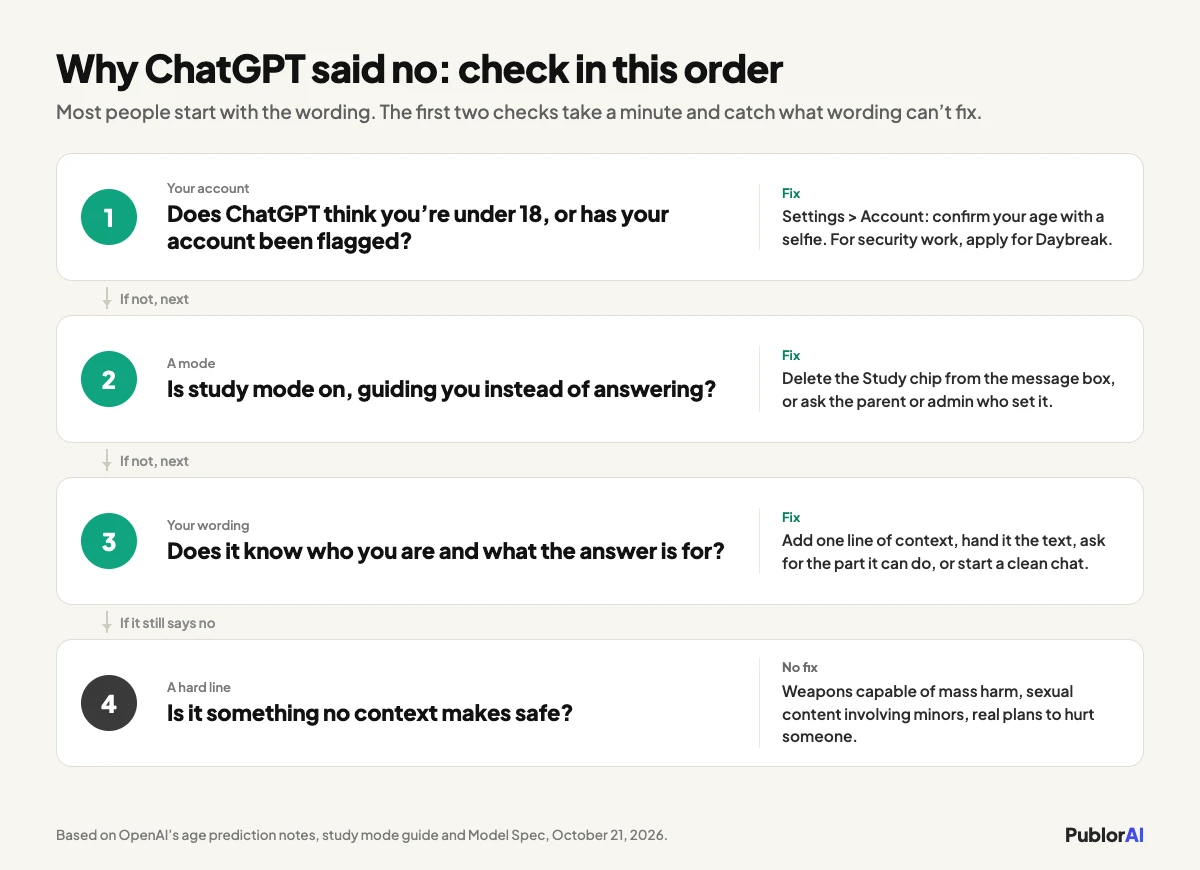
If it’s a real refusal, work through these in order. The first two take a minute and fix the cases no rewording can touch:
- Check whether ChatGPT thinks you’re under 18: look in Settings > Account.
- Turn off study mode: delete the Study chip from the message box.
- Say who you are and why you’re asking: one honest line of context.
- Hand it the text: ask it to work on material you already have.
- Ask for the part it can do: build on the partial answer.
- Start a clean chat: leave behind the history that keeps tripping it.
- For security work, apply for Daybreak: OpenAI’s trusted access program.
Each step is below, with what to look for and what to type.
Step 1: Check Whether ChatGPT Thinks You’re Under 18
Start here, because no rewording fixes it. Since January 2026, ChatGPT has run an age prediction model on consumer accounts, and when it estimates that an account may belong to someone under 18, it applies stricter content rules automatically. OpenAI’s explanation of age prediction says the model looks at how long an account has existed, the times of day you’re usually active, your usage patterns over time and the age you gave. It also says that “when we are not confident about someone’s age or have incomplete information, we default to a safer experience.” It reached the EU in late August 2026.
An adult caught by it hits refusals in exactly the areas OpenAI lists as protected for teens:
- Graphic violence or gory content
- Sexual, romantic or violent role play
- Depictions of self-harm
- Viral challenges that could encourage risky behavior
- Content that promotes extreme beauty standards, unhealthy dieting or body shaming
So if ChatGPT won’t write the fight scene in your thriller, or a role play stops dead, check this before anything else. Go to Settings > Account. OpenAI says that’s where you can see whether safeguards have been added to your account and start verification. Don’t expect an age line if yours hasn’t been flagged: on my own account, the Account page shows only my name, email and plan, with nothing about age at all. If yours shows an age or verification notice, that’s your answer. Confirming your age takes a selfie through Persona, an identity-verification service, and restores full access.
A new account has the least history for the model to read, so if you set one up recently, for work or for a new email address, this is the first thing to rule out.
Step 2: Turn Off Study Mode
If ChatGPT keeps answering your homework with questions, it isn’t refusing: study mode is on. OpenAI’s study mode guide says it can “guide you with questions instead of giving the answer right away,” and it’s available on every plan and every model, which makes it easy to switch on without noticing.
Look at the message box. When study mode is on, a blue Study chip with a book icon sits at the start of it, which is exactly how it looked when I switched it on in my own account. To turn it off, put your cursor next to the chip and press Backspace, or select the × on it if your layout shows one. Study mode can’t run in Temporary Chats, GPTs or Projects, which gives you a quick test: ask the same thing in a Temporary Chat and see whether the answer comes straight back.
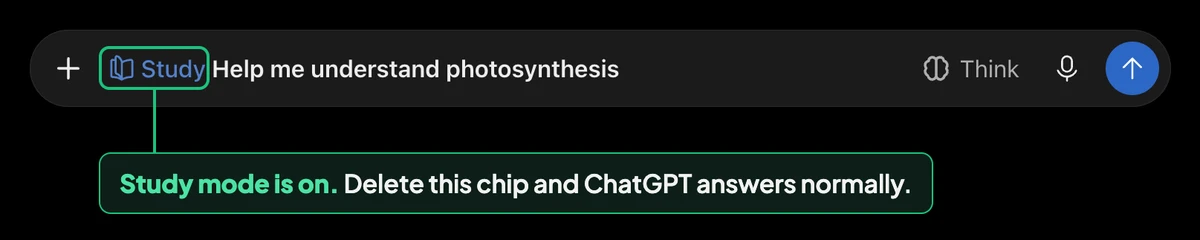
Study mode switched on in a new ChatGPT chat, October 21, 2026. Delete the Study chip and ChatGPT answers normally.
There are two cases you can’t switch off yourself. On a teen account linked to a parent, Study hours can start new chats in study mode at set times, and in some ChatGPT Edu workspaces an admin requires it. The setting then belongs to the parent or the admin, so that’s who to ask.
Study mode will still give a direct answer sometimes, and for graded work your school’s AI rules apply either way. If the assistant refusing your homework is Claude rather than ChatGPT, that works differently, and Claude refusing to do homework has its own fixes.
Step 3: Say Who You Are and Why You’re Asking
Most real refusals happen because ChatGPT can’t tell a safe request from a risky one that uses the same words. One line of context settles it. OpenAI’s Model Spec, the rulebook its models are trained to follow, tells ChatGPT to assume best intentions and says it “should never refuse a request unless required to do so.” It also allows sensitive material in educational, medical and historical contexts. Your context is how ChatGPT knows which one it’s in.
Compare these pairs:
- Bare: “What happens if you mix bleach and ammonia?” With context: “I’m cleaning my bathroom. Which common cleaning products are dangerous to mix, and why?”
- Bare: “Show me a phishing email.” With context: “I run IT for a 20-person office and I’m training staff to spot phishing. Write a short example with the warning signs labeled.”
- Bare: “Describe a stabbing in detail.” With context: “I’m writing a crime novel for adults. Write the scene where the detective finds the victim, focusing on what she notices.”
For a fair request, this is the heart of how to stop ChatGPT refusing: say what the answer is for. Keep the context honest. It works because it tells ChatGPT what the answer is for, not because it’s a magic phrase, and an invented backstory for a request that really is harmful still fails.
Step 4: Hand It the Text Instead of Asking It to Write It
ChatGPT is far more willing to work on material you already have than to produce it from scratch. The Model Spec sets this out as an exception: when you supply the content, the model can translate, summarize or reformat it, because “if the user already has access to a piece of content, then the incremental risk for harm in transforming it is minimal.”
That makes a real difference for anyone who handles difficult documents. A lawyer summarizing a judgment about a violent crime, a translator working on a police report, a moderator sorting abusive comments into categories: paste the text in and ask for the summary, the translation or the categories. The same request worded as “write me something like this” is much more likely to be refused.
The exception has a limit. It covers restricted and sensitive material, and the Model Spec still rules out anything sexual involving minors, even when you supply it.
Step 5: Ask for the Part It Can Do
If ChatGPT answered half your question and explained why it stopped, you’re looking at a safe completion, not a refusal. The Model Spec says that starting with GPT-5, OpenAI’s models “prefer Safe Completions over hard refusals in most cases”: they cover what’s allowed and say what they’re leaving out. The useful move is to work with that, not against it.
Ask a follow-up on the part it did answer. Ask for the general or conceptual version instead of step-by-step instructions. Ask how professionals guard against the thing rather than how to do it. Each of those usually gets a full answer, and together they often cover what you needed.
A bare “Sorry, I can’t help with that,” with no explanation, is a firmer no. The Model Spec describes that short form as what older models give, and what current ones use when a request plainly shows harmful intent.
Step 6: Start a Clean Chat
A chat that has refused once tends to keep refusing, because ChatGPT reads the whole conversation as context, not only your newest message. For its highest-risk areas, OpenAI’s safety documentation for GPT-6 Astra also describes a safety system that “scans messages in the conversation,” so a flagged question three turns back can color everything after it.
So don’t argue with it in the same thread. Open a new chat and put your context and your request together in the first message, written the way Step 3 describes. If the new chat answers, the old history was the problem.
Step 7: For Security Work, Apply for Daybreak
If you do legitimate security work and ChatGPT keeps declining defensive tasks, the fix isn’t in your prompt. OpenAI runs a trusted access program for exactly this, called Daybreak. Its Blue tier reduces refusals for verified defensive work such as vulnerability triage, malware analysis and incident response.
Individuals apply at chatgpt.com/cyber, and the bar is real: an eligible paid plan, Advanced Account Security with a physical FIDO2 hardware key, identity verification, and being at least 18. OpenAI says finishing the setup doesn’t guarantee approval, and its newest model, GPT-6 Astra, keeps its standard safeguards even on the Blue tier.
This also explains something people notice. OpenAI’s Astra documentation says that for accounts “flagged as potentially high risk,” the model’s refusal line becomes more conservative. If one topic suddenly gets refused everywhere on your account, that may be why, and our breakdown of GPT-6 Astra’s restrictions covers how that moving line works.
When No Fix Will Work
Some refusals are the system working as intended, and none of the steps above will change them. Help building weapons capable of mass harm, sexual content involving minors, and real plans to hurt someone stay refused however you phrase them, and they should. Our list of things ChatGPT won’t do separates those hard lines from the false flags a rewrite clears, and our explainer on why ChatGPT refuses covers how the line gets drawn.
Mistakes That Make ChatGPT Refuse More
A few habits make refusals worse, and the first one can follow your account around:
- Using jailbreak prompts. They break OpenAI’s terms, and its Astra documentation says enforcement can “move an account into a more restrictive blocking configuration.” A jailbreak that fails can leave you with more refusals than you started with.
- Repeating the same blocked request. Rewording one request ten times in a row looks like a pattern, not a misunderstanding. Change the context, or change what you’re asking for.
- Stripping out context to sound neutral. “Just answer the question” removes the one thing that helps. Say what the answer is for.
- Treating a partial answer as a refusal. A safe completion is a starting point. Follow up on what it gave you.
- Skipping the account check. If Step 1 is the cause, every rewording fails, and people spend hours on prompts for what is really a settings problem.
If You Only Try One Thing
Open Settings > Account and check whether ChatGPT has put your account in the under-18 experience. It takes a minute, it explains refusals that otherwise look random, and no prompt advice can fix it. Most advice on how to stop ChatGPT refusing starts and ends with prompts, which is why this gets missed. If your account is clear, the next most useful fix is one honest line of context at the top of a fresh chat.
If you use Claude as well, its refusals come from a different system, and our guide to stopping Claude refusing covers that side. The reasons every assistant does this at all are in our explainer on why AI chatbots refuse.