ChatGPT not responding usually has a boringly simple cause, and you can almost always fix it yourself in under a minute. Most of the time it’s a stalled browser tab, an overloaded chat, your own network, or OpenAI’s servers having a moment, not your account and not a real bug. By the end of this guide you’ll know which of those four it is and the exact fix for each, worked through in the order that clears it fastest. You’ll need nothing except the browser or app you already use, and maybe sixty seconds. The single fix that solves it most often is the simplest one, a hard refresh, so I’ll start there and only move to the deeper steps if the quick ones don’t bring it back. The first time ChatGPT froze mid-answer on me I closed everything and panicked, and it turned out a hard refresh was all it needed.
Before you start changing settings, it helps to know that ChatGPT not responding covers a few different failures that look the same on screen: a message that won’t send, a reply that freezes halfway, an endless loading dot, or a flat error. You might call it ChatGPT not working or stopped responding, but those labels hide different causes, so the first move is always to work out which one you’ve got. And if what you’re actually hitting is a refusal rather than a freeze, where ChatGPT clearly declines instead of stalling, that’s a separate problem covered in our guide on why ChatGPT refuses. This post is for the times it goes quiet on you.
First, Work Out Why ChatGPT Isn’t Responding
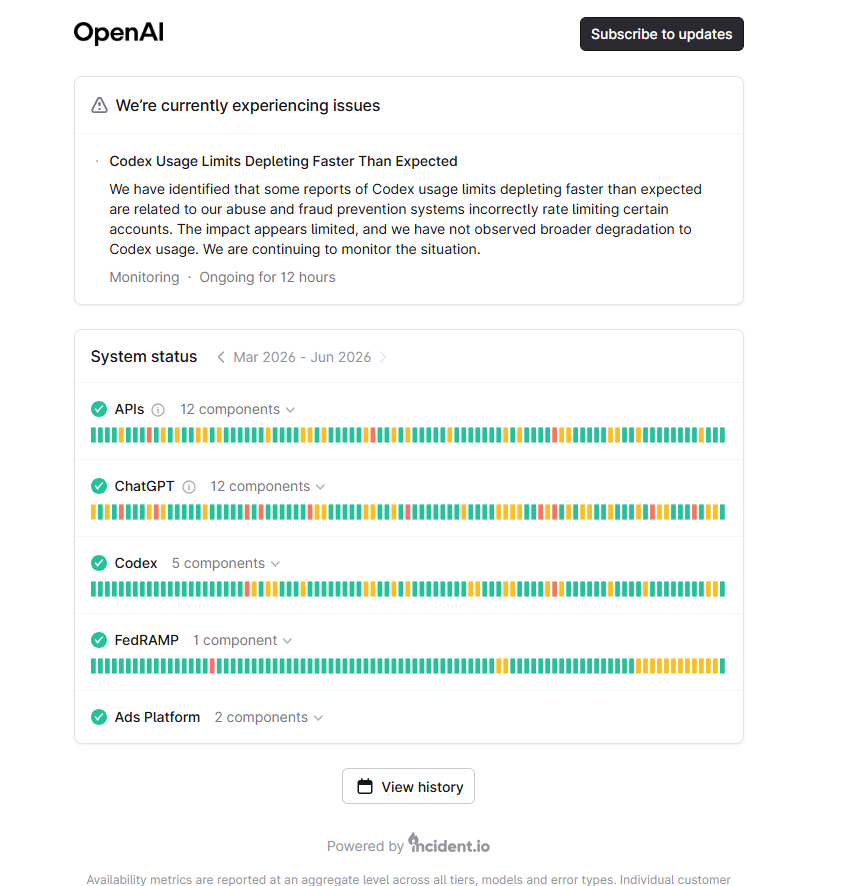
Spend ten seconds locating where the problem lives before you touch any setting, because that tells you which fix to reach for. ChatGPT not responding almost always traces to one of four places: your browser tab, the chat itself (too long), your internet connection, or OpenAI’s servers. The quickest single tell is to check whether the service is actually down, on the official OpenAI status page, before you assume the fault is on your end.
If the status page is all green, the cause of ChatGPT not responding is almost certainly local, which is good news because local fixes are fast. Use this quick table to match what you’re seeing to its most likely cause and the first thing to try.
| What you see | Most likely cause | First fix to try |
|---|---|---|
| Message won’t send at all | Stalled browser tab | Hard refresh (Ctrl/Cmd + Shift + R) |
| Reply freezes halfway through | Long generation or a network blip | Type “continue”, or regenerate |
| Endless loading dots, no reply | Overloaded chat or an extension | Start a new chat, then try incognito |
| “Something went wrong” error | Your connection or OpenAI’s servers | Check the status page, switch network |
| Slows down then dies at busy times | Rate limit or server load | Wait a few minutes, then retry |
How to Fix ChatGPT When It’s Not Responding (9 Steps)
Work through these in order, top to bottom, and stop as soon as one brings ChatGPT back. They run from the fastest, most common fix to the deeper ones, so most people never get past step three. In my experience a hard refresh alone clears ChatGPT not responding about eight times out of ten.
- Hard refresh the page. Press Ctrl + Shift + R (Windows) or Cmd + Shift + R (Mac) to force a clean reload that dumps the stalled tab. OpenAI’s own help docs list this as the first step for a slow or stuck ChatGPT, and it is the one that works most often.
- Check the status page. Open status.openai.com. If ChatGPT shows a partial outage or degraded performance, the problem is on OpenAI’s side and no local fix will help. Wait it out.
- Start a brand-new chat. A single thread that has run for days or holds huge pasted documents can choke the page. Open a fresh chat and send your message there.
- Check your internet. Toggle Wi-Fi off and on, or switch from Wi-Fi to mobile data (or the reverse). A flaky connection is a very common reason for ChatGPT not responding mid-request.
- Open it in an incognito or private window. This loads ChatGPT with no extensions and no cached data, which instantly tells you whether the fault is your normal browser profile.
- Disable browser extensions. Ad blockers, script blockers, and privacy extensions can break the page. Turn them off (or use the incognito window from step five) and reload.
- Clear cache and cookies. Old cached data for chatgpt.com is a frequent culprit. Clear the site’s cache and cookies, then reload and sign in again.
- Sign out and back in, or switch app. Log out fully and back in to refresh your session. If the browser still stalls, try the ChatGPT mobile or desktop app instead, which often works when the web version won’t.
- Wait out the rate limit or peak load. At busy times, especially on the free tier, ChatGPT slows or stops while capacity is tight. Give it a few minutes. If you hit this often, our breakdown of ChatGPT Plus vs free explains how the paid tier eases the limits.
When ChatGPT Stops Mid-Answer (the Cut-Off Case)
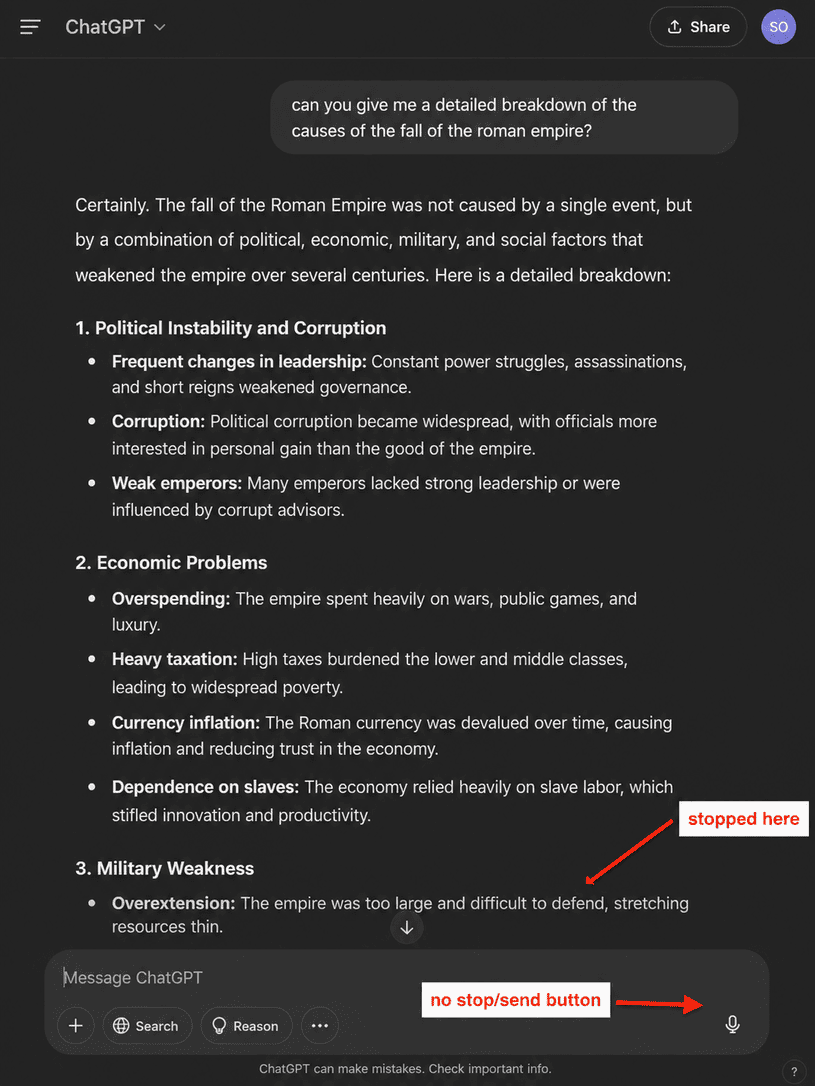
If ChatGPT starts replying and then freezes partway, that’s a specific kind of ChatGPT not responding, and a different problem from a dead tab: the response got interrupted, not blocked. The common causes are a long answer timing out, a brief network drop, or the reply hitting its length ceiling. The fixes are different too, so don’t waste time clearing your cache for this one.
Start by simply typing continue or “keep going” and sending it, which usually makes the model pick up exactly where it stopped. If that fails, hit the regenerate button to run the reply again. For long outputs that keep cutting off, the durable fix is to ask for the answer in smaller parts (“give me section one first, then I’ll ask for the next”), since a shorter response is far less likely to stall. The same goes for very long conversations: once a chat fills the model’s context window, replies often start cutting off partway, so moving to a fresh chat fixes mid-answer freezes more often than people expect. OpenAI’s error-message troubleshooting covers the same interrupted-response behavior. Writing tighter prompts helps here too, which our guide on how to write better AI prompts walks through.
Mistakes That Keep ChatGPT Stuck
A few habits make ChatGPT not responding worse or drag it out longer than it needs to be. Avoid these while you troubleshoot.
- Hammering the send button. Clicking send over and over queues duplicate requests and can lock the tab harder. Send once, then wait.
- Pasting an entire document into one message. Huge inputs are a classic cause of a frozen reply. Break the text up or summarise what you need.
- Living in one giant chat. When I keep a single thread open for weeks it eventually gets sluggish. Start new chats for new topics.
- Ignoring the status page. Changing random settings while OpenAI is mid-outage just wastes your time. Check status first.
- Running a stack of heavy extensions. Five script-blocking extensions on one tab is asking for trouble with any web app, ChatGPT included.
- Only trying one device. If the web app is frozen, a quick check on the phone app or another browser tells you in seconds whether it’s just that tab or your whole account.
How to Stop It Happening Again
You can cut how often ChatGPT not responding hits you with a few small habits. None of them take any real effort once they’re set.
- Keep chats short and topic-scoped. Start a new chat per task instead of one endless mega-thread, and the page stays quick.
- Bookmark the status page. Make status.openai.com your first click whenever something looks off, before you start fiddling.
- Keep the app as a backup. If the web version stalls, the mobile or desktop app is a fast fallback that often just works.
- Use a clean browser profile for AI tools. A separate profile with minimal extensions avoids most extension-related freezes.
- Expect peak-time slowdowns on free. If you rely on ChatGPT daily, the paid tier is steadier under load. New here? Our beginner’s guide to ChatGPT covers the setup basics.
Back Up and Running
Almost every time, ChatGPT not responding comes down to a stalled tab, an overloaded chat, your connection, or OpenAI’s servers, and you’ve now got the fix for each in the order that clears it fastest. Run the hard refresh first, check the status page second, and you’ll solve the large majority of cases in under a minute without touching anything deeper. Once I started checking “is it me or is it OpenAI” before anything else, these freezes stopped eating my time.
One last thing worth ruling out: if the model is clearly declining your request rather than stalling, that isn’t really ChatGPT not responding at all, it’s a refusal, and it has its own playbook. See the specific things ChatGPT won’t do and how to reword around them. Anthropic’s assistant has its own version of these quirks too, which we cover in why Claude refuses questions if you use both. For why this happens across every assistant, see why AI chatbots refuse.